We are storing the factorial in parts in array indices. Instead of finding the factorial of given number we are finding the factorials of all numbers upto 100001 in their respective array indices and just print the desired facts.
By taking mod with our self defined value of 10^7 we are in a way compressing the number at each level so that are data types can hold that value.
a[i] = ((i%mod)*(a[i-1]%mod))%mod;
The above line of code is very important to understand the code.
This is the line in which through which we are compressing the number to our data type limits (long long)
PyCharm is a cross-platform IDE that provides consistent experience on the Windows, macOS, and Linux operating systems.
PyCharm is available in three editions: Professional, Community, and Edu. The Community and Edu editions are open-source projects and they are free, but they have less features.
PyCharm Edu provides courses and helps you learn programming with Python. The Professional edition is commercial, and provides an outstanding set of tools and features.
System requirements
Requirement
Minimum
Recommended
RAM
4 GB of free RAM
8 GB of total system RAM
Disk space
2.5 GB and another 1 GB for caches
SSD drive with at least 5 GB of free space
Monitor resolution
1024x768
1920×1080
Operating system
Officially released 64-bit versions of the following:
Microsoft Windows 8 or later
macOS 10.13 or later
Any Linux distribution that supports Gnome, KDE , or Unity DE
Pre-release versions are not supported.
Latest 64-bit version of Windows, macOS, or Linux (for example, Debian, Ubuntu, or RHEL)
You do not need to install Java to run PyCharm, because JetBrains Runtime is bundled with the IDE (based on JRE 11).
Python 2: version 2.7
Python 3: from the version 3.5 up to the version 3.9
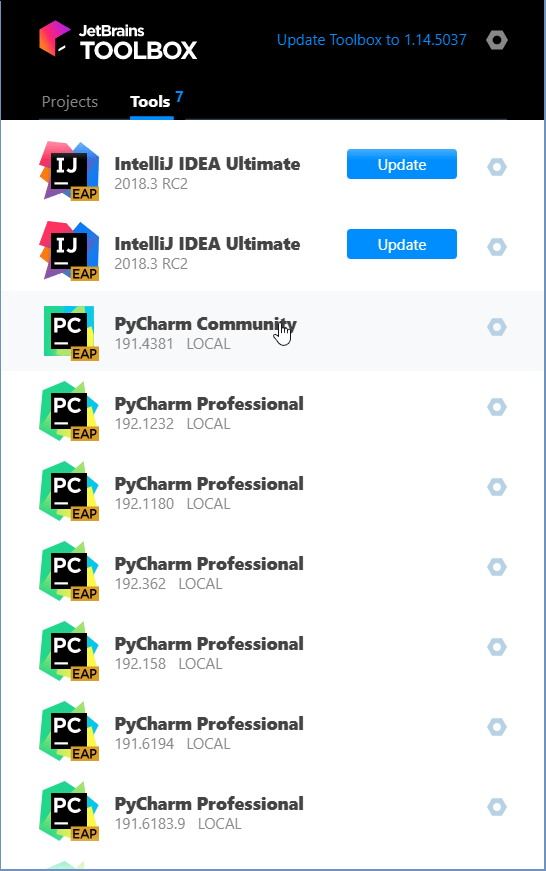
After you run the Toolbox App, click its icon in the notification area and select which product and version you want to install.
Log in to your JetBrains Account from the Toolbox App and it will automatically activate the available licenses for any IDE that you install.
Standalone installation
Install PyCharm manually to manage the location of every instance and all the configuration files. For example, if you have a policy that requires specific install locations.
To verify the integrity of the installer, use the SHA checksum linked from the Download page.
Run the installer and follow the wizard steps.
Mind the following options in the installation wizard
64-bit launcher: Adds a launching icon to the Desktop.
Open Folder as Project: Adds an option to the folder context menu that will allow opening the selected directory as a PyCharm project.
.py: Establishes an association with Python files to open them in PyCharm.
Add launchers dir to the PATH: Allows running this PyCharm instance from the Console without specifying the path to it.
When you run PyCharm for the first time, some steps are required to complete the installation, customize your instance, and start working with the IDE.
Silent installation is performed without any user interface. It can be used by network administrators to install PyCharm on a number of machines and avoid interrupting other users.
To perform silent install, run the installer with the following switches:
To check for issues during the installation process, add the /LOG switch with the log file path and name between the /S and /D parameters. The installer will generate the specified log file. For example:
The silent configuration file defines the options for installing PyCharm. With the default options, silent installation is performed only for the current user: mode=user. If you want to install PyCharm for all users, change the value of the installation mode option to mode=admin and run the installer as an administrator.
The default silent configuration file is unique for each JetBrains product. You can modify it to enable or disable various installation options as necessary.
To find the count of numbers in a
given range having odd number of factors.
#Solution Code:
#assignment 23 def count_factors(Number): factor_count=0 for
i in
range(1,int(Number+1)): if Number % i == 0: factor_count += 1 return
factor_count """Function
Ended"""
"""Main program begins here""" a = int(input("Enter the lower
range of number: "))
b = int(input("Enter the Upper range of number(this will be included):
")) print("**************************************************************************")
number_elements = 0 for number
in range(a,b+1): Number_Factor = count_factors(number) if
Number_Factor % 2 == 1: number_elements += 1 print("No. of numbers having odd number of factors are: ",number_elements)
#Ouptut
#Explaination:
Step 1:
Firstly we define a function named a count_factors()
which takes a int variable as its parameter. Here Number is passed
as an formal parameter.
Now we initialize a int variable factor_count
which stores a value 0.
Now we run a for loop and run
it from i = 1 to i = Number. (note: we pass i =Number+1 so that i =
Number is included).
#FOR LOOP BODY
In for loop body we check a condition
whether Number % i == 0 (if i is a factor of Number). If this is true then we
increase the value of factor_count by 1.
At the end of for loop we return
factor_count.
Step 2:
#Drivers Code
We input a lower range value and
store it in variable a and an upper range value and store it in variable
b.
We then initialize a variable number_elements
= 0.
Now we again run a for loop
from number = a to number = b+1 (b+1 so that number = b is
included).
In #For body we pass number
in count_factors() as parameter and store the value returned in a
variable Number_factor.
Now we check if Number_factor
is odd ( if Number_factor % 2 == 1 : )
If true then we increment value of
number_elements by 1 else we continue the loop.
Step 3: End
We print the value of number_elements
obtained after completion of for loop.